
VPS Setup Instructions
reader, follow these instructions if you would like to set up a VPS.
VPS = Virtual Private Server (not to be confused with a VPN Virtual Private Network)
A VPS is a Windows PC in the cloud that you can access from anywhere and remains powered on 24 hours a day. So we basically install the TBM to run on a VPS and we can just leave it running. You can connect to your VPS from your PC, Laptop, Ipad, Phone etc via Remote Desktop.
STEP 1
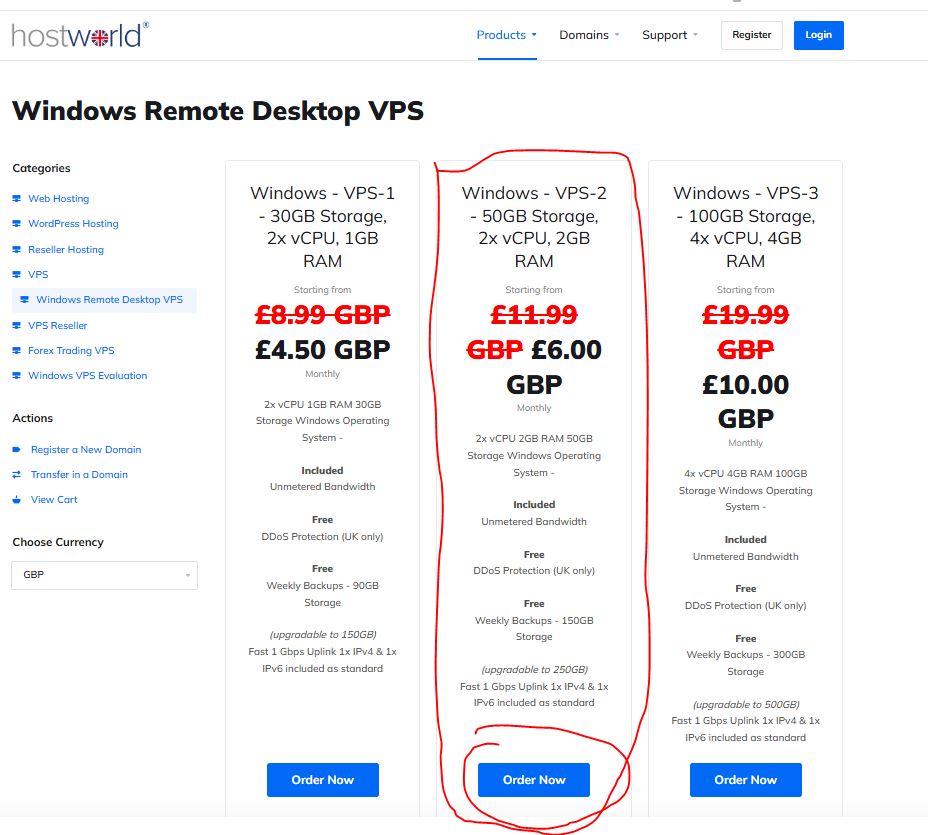
Choose Windows VPS -2 option as per below
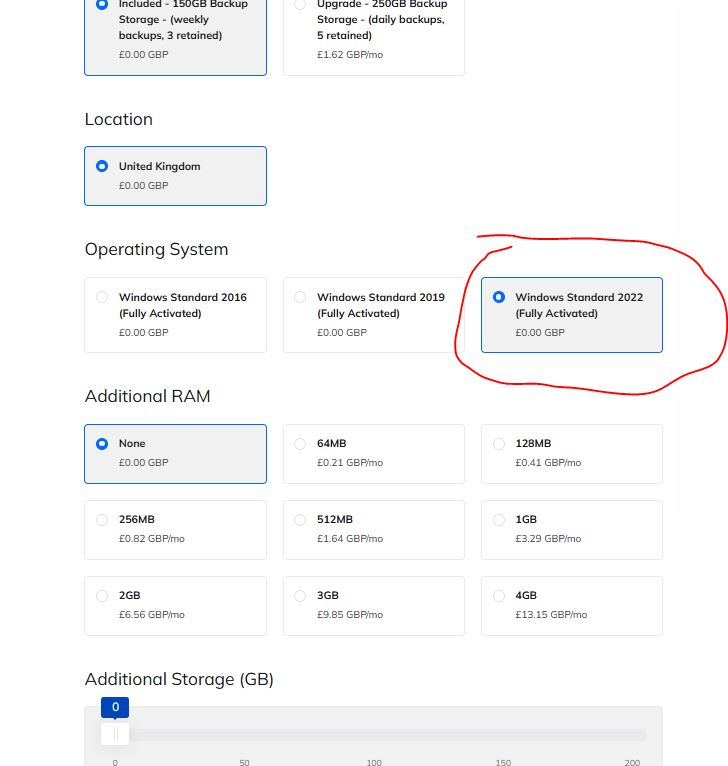
Then next page is configure….all you need to change is Operating System….scroll down and Choose “Windows Standard 2022”
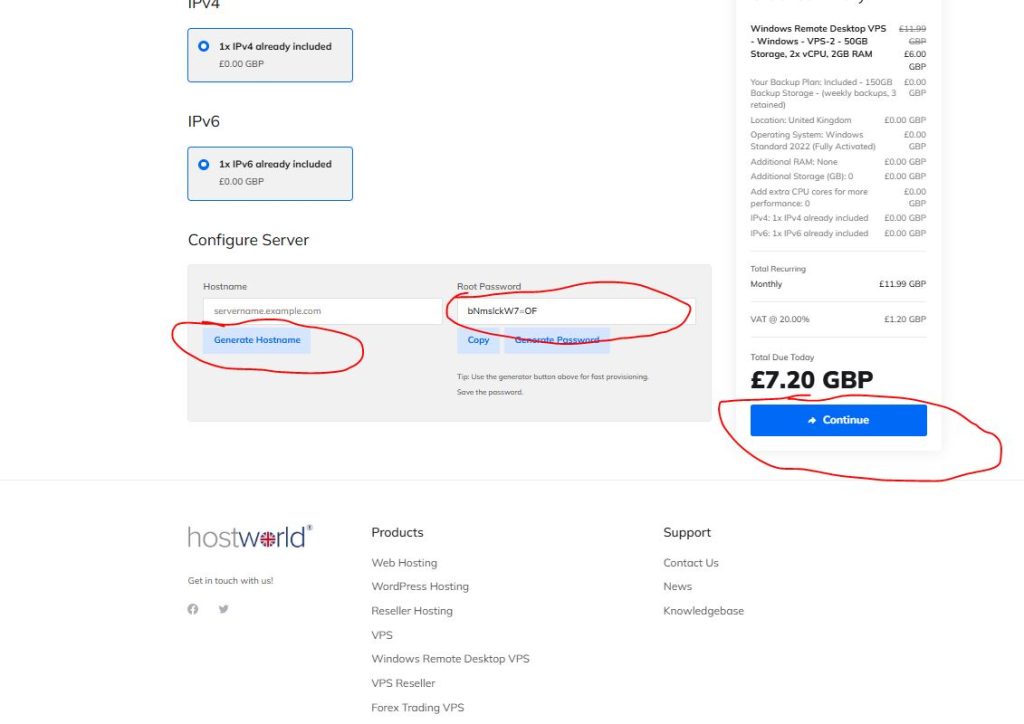
Once your VPS is ready you can connect to it via Remote Desktop Connection from your device.
Once your VPS is setup, Hostworld will send you an email with an rdp file already configured so you can save to your desktop and click on it to connect to your VPS at any time.
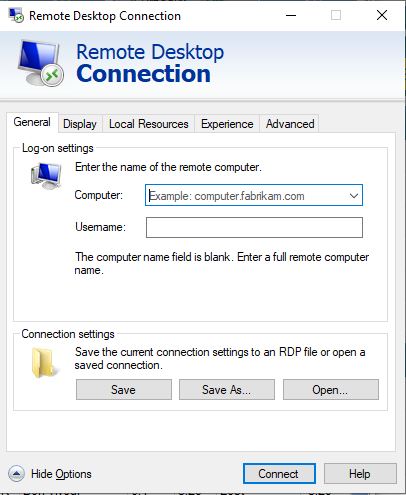
Or if you wish to create your rdp file manually; On a windows PC open RDC (Type RDC into your windows search) Then enter your VPS IP address into the Computer field. Type “administrator” into username field.
You can click “Save As” to save your connection settings so when you want to connect you can just click on the file and it will open your VPS.
Click connect and enter your VPS Root password into the password field and click connect.
STEP 2
Download and install Gruss Betting Assistant onto your VPS
This is required to interface between the TBM Software and your Betfair/BetDaq account. You can download the version for Betfair or Betdaq. The Betfair version has 30 day free trial and then costs £6/m. The Betdaq version is currently free.
Download Gruss Betting AssistantSTEP 3
Subscribe to TBM
An active subscription to TBM is required if you wish to run automation. If you don’t have a current subscription to TBM (The Bet Machine) then click on either the Payal or Stripe image below to subscribe.The Bet Machine is owned by Crystal software.
If you already have an active subscription please proceed to the next step.
STEP 4
Download and install the TBM and Betting Assistant on to your VPS.
STEP 5
Register TBM. Open TBM and then click “Help”. Next in the drop down select “Register TBM/About”. Then in the box that appears enter your email. You must use the email you used to subscribe to TBM.
Once you have registered TBM (See videos 1 and 2 on TBM website) to see how to connect TBM to GRUSS Betting Assistant.